Blog

Python Virtual Environments with “virtualenv”

Python virtual environment allows python programmers to safely work with different python packages & different versions to test the application. Plus it would not impact the other python environments on the same system.

The following command will install the “virtualenv” in /usr/local/bin folder:

ssh -H python3 -m pip install virtualenv

The virtualenv is now available to all the applications/users on the system.

The following command installs the virtualenv in user’s local folder (~/.local/bin/):

python3 -m pip install virtualenv

Check the version of virtualenv:

python3 -m virtualenv --version

Create a virtual environment with the name “ve100” using the following command:

virtualenv ve100

The above command will create a folder with the name “ve100” at the current location.

Activate the following the virtual python environment using the following command:

source ve100/bin/activate

To deactivate, run the deactivate command:

deactivate

To create a virtual environment with a desired version of python:

virtualenv -p /usr/bin/python2.7 ve200
Python Package Management with pip3

“pip” is a default package manager for python packages/modules.

You can install pip using the following command:

sudo apt install python3-pip

The pip3 binary in installed in /usr/bin folder.

Check the pip version:

pip3 --version

or

python3 -m pip --version

You can upgrade “pip” using the following command:

sudo -H python3 -m pip install --upgrade pip

The table below lists some commonly used of pip command:

CommandDescription
python3 -m pip –helpDisplay pip help
python3 -m pip listLists the installed packages
python3 -m pip list -vLists the installed packages along with the install path
python3 -m pip search oauthSearches for packages with “oauth” string
python3 -m pip install pandasInstalls the latest version of the package “pandas”
python3 -m pip show pandasShows the details of the installed package pandas
python3 -m pip uninstall pandasUninstalls the package pandas
pip freezeDisplays the lists of packages installed along with it’s version in the format:
[package_name_1]==[version]
[package_name_2]==[version]

Tutorial: Python Virtual Environment Wrapper

Installation:

Step 1: Make sure the “virtualenv” is already installed

virtualenv --version

Step 2: Install “virtualenvwrapper

sudo -H python3 -m pip install virtualenvwrapper

Step 3: Add some environment variables

Add the following at your .bash_profile file (or to your shell’s profile file)

export WORKON_HOME="$HOME/my_python_venvs"
export VIRTUALENVWRAPPER_VIRTUALENV="/usr/local/bin/virtualenv"
export VIRTUALENVWRAPPER_PYTHON="/usr/bin/python3"

export PROJECT_HOME="$HOME/my_python_projects"

Step 4: Source the wrapper script

 source /usr/local/bin/virtualenvwrapper.sh

Step 5: Create directories

mkdir $HOME/my_python_venvs
mkdir $HOME/my_python_projects

You are ready to use the virtualenvwrapper!!

Using virtualenvwrapper

Switch between multiple versions of python3

You can have multiple versions of python 3 installed on your Ubuntu machine, and switch between the versions. This presents nice flexibility to the users. You can potentially have the latest version installed, and switch to the prior version easily!

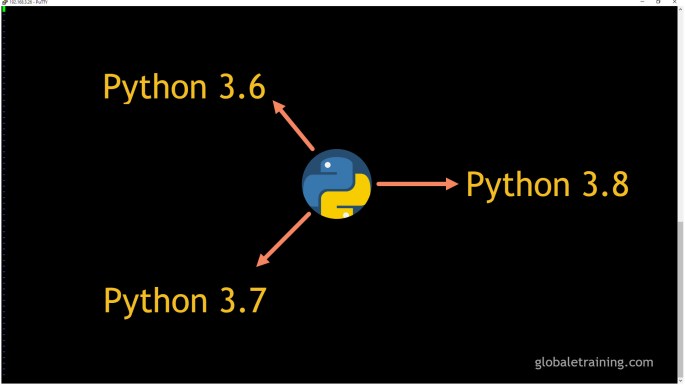
The following steps will enable you to switch between 3.6, 3.7 and 3.8 version of python on a ubuntu machine.

Step 1: Check existing version

$ python3 --version
Python 3.6.9

Step 2: Run apt update

$ sudo apt update -y

Step 3: Install python 3.7

$ sudo apt install python3.7

Step 4: Install python 3.8

$ sudo apt install python3.8

Step 5: Use “update-alternatives” enable the switch flexibility

$ sudo update-alternatives --install /usr/bin/python3 python3 /usr/bin/python3.6 1
$ sudo update-alternatives --install /usr/bin/python3 python3 /usr/bin/python3.7 2
$ sudo update-alternatives --install /usr/bin/python3 python3 /usr/bin/python3.8 3

Step 6: Now, you can switch between the python version by executing the following command, and picking the one you desire.

$ sudo update-alternatives --config python3
There are 3 choices for the alternative python3 (providing /usr/bin/python3).

  Selection    Path                Priority   Status
------------------------------------------------------------
* 0            /usr/bin/python3.6   2         auto mode
  1            /usr/bin/python3.6   2         manual mode
  2            /usr/bin/python3.7   2         manual mode
  3            /usr/bin/python3.8   2         manual mode

Press <enter> to keep the current choice[*], or type selection number:

Step 7: Test the version by running the following command

$ python3 --version
Python 3.7.5    (Note: This depends on the version installed, and picked)

How to Upgrade to Python 3.7 on Ubuntu 18.x

In this article, we will guide you to upgrade python 3.6 to python 3.7. Additionally, we will also show you to how you can switch between 3.6 and 3.7.

Step 1: Check the current version

Run the following command to verify the current version of python.

$ python3 --version

Output:

python 3.6.9

Step 2: Python 3.7 Installation

Run the following commands to install python 3.7

Preview(opens in a new tab)

$ sudo apt update -y
$ sudo apt install python3.7

Step 3: Add python 3.6 and 3.7 to update-alternatives

$ sudo update-alternatives --install /usr/bin/python3 python3 /usr/bin/python3.6 1
$ sudo update-alternatives --install /usr/bin/python3 python3 /usr/bin/python3.7 2

Step 4: Pointing to python 3.7

Run the following command to point to python 3.7 (or 3.6)

$ sudo update-alternatives --config python3

Output:

There are 2 choices for the alternative python3 (providing /usr/bin/python3).
Selection Path Priority Status
0 /usr/bin/python3.6 1 auto mode
1 /usr/bin/python3.6 1 manual mode
2 /usr/bin/python3.7 2 manual mode
Press to keep the current choice[*], or type selection number:

Use “2” to point to python 3.7 and use”1″ to point to python 3.6. The selection might be little bit different on your system.

Under the hood, it uses sym-links to point to the selected version of python.


Step 4: Check the python version

$ python3 --version

Congrats! You are done!

Install OpenSSH on Ubuntu

SSH is not installed on Ubuntu, by default. You will have to install the SSH server.

OpenSSH is a open source SSH server that is free, and is widely used in the industry.

Installing OPENSSH

# sudo apt-get install openssh-server

Starting SSH

# sudo service ssh start

Stopping SSH

# sudo service ssh stop

Status SSH

# sudo service ssh status

Restart SSH

# sudo service ssh restart

SSH Server runs at port 22 by default. Checking port 22

# netstat -ant | grep 22
tcp        0      0 0.0.0.0:22              0.0.0.0:*               LISTEN 
tcp6       0      0 :::22                   :::*                    LISTEN

Now that you have the SSH Server installed, you should be able to SSH into this fedora machine from any other machine using any ssh client.


How To Install Nginx on Ubuntu 16.04?

Nginx is one of the popular web servers used on the internet. Ngnix can be used as a web server or a reverse proxy.

  1. Install Nginx
    1. sudo apt-get update
    2. sudo apt-get install nginx
  2. Make changes to Firewall
    1. sudo ufw app list (to list apps)
    2. sudo ufw allow ‘Nginx HTTP’
    3. sudo ufw status
  3. Check the status
    1. systemctl status nginx
  4. Nginx Relates Files and Folders
    1. Web Content Location: /var/www/html
    2. Nginx Configuration File: /etc/nginx/nginx.conf
    3. Access Log: /var/log/nginx/access.log
    4. Error Log: /var/log/nginx/error.log
  5. Managing Nginx
    1. Stop: sudo systemctl stop nginx
    2. Start: sudo systemctl start nginx
    3. Restart: sudo systemctl restart nginx
    4. Reload Config Changes: sudo systemctl reload nginx