Blog

Simple VBScript to get the filenames, file size etc.

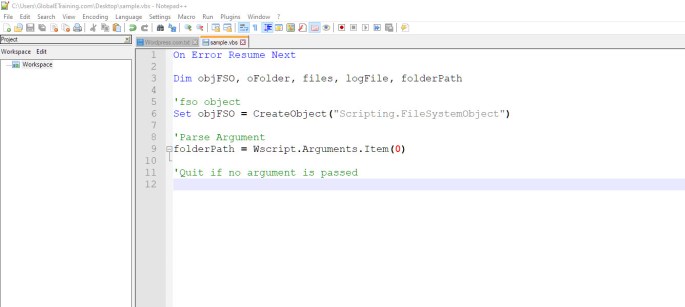
Simple VBScript to get the filenames, file size and date created given the folder path

On Error Resume Next

Dim objFSO, oFolder, files, logFile, folderPath

'fso object
Set objFSO = CreateObject("Scripting.FileSystemObject")

'Parse Argument
folderPath = Wscript.Arguments.Item(0)
 
'Quit if no argument is passed

If folderPath = "" Then
   Wscript.Echo "No Folder parameter was passed"
   Wscript.Quit
End If

'Get folder & files
Set logFile = objFSO.CreateTextFile(folderPath&"\logFile.txt", True)
Set oFolder = objFSO.GetFolder(folderPath)
Set files = oFolder.Files

'Loop
For each file In files
  logFile.WriteLine(file.Name & " " & file.size & " bytes " & " 
  DateCreated " & file.DateCreated)
Next

logFile.Close
vi Editor Cheat sheet

Page Contents


Opening File
Saving & Quitting
Switching to Shell & Run Commands
Modes – Command, Insert/Append & Exit
Deleting Text
Moving Cursor in file
Moving on Screen
Moving on Screen using Ctrl key
Go to desired line by line number
Changing Text
Copying, Pasting and Moving lines
Show/Hide Line Numbers
Searching – Ignore/Set case
Search and Replace

Opening File


CommandPurpose
vi Open new file to be named later
vi file_name Open an existing file or create a new file
vi -r file_name Recover crashed file
view filenameOpen file in read-only mode

Savings & Quitting


CommandPurpose
:qQuit
:q!Quit without saving the changes
:wSave
:wq or :wq!Save and Quit
:w filen_nameSave to file “file_name”
:e! Discard unsaved changes, and reopen the file.
:shSwitch to shell temporarily, and return back using Ctrl+d

Switching to Shell & Run Commands


CommandPurpose
:shSwitch to shell temporarily, and return back using Ctrl+d
:!cmd1 Execute the command cmd1

Modes – Command, Insert/Append & Exit


CommandPurpose
iInsert characters left of cursor
IInsert characters beginning of line
aInsert characters right of cursor
AInsert characters end of line
oInsert line below cursor
OInsert line above cursor
EscInsert Mode to Command Mode
Exit Mode to Command Mode

Deleting Text


CommandPurpose
xDelete character at the cursor
XDelete character to the left of the cursor
dwDelete word or part of word, to right of cursor
ddDelete current line
DDelete part of line to right of cursor
dG Delete to end of file
d1G Delete – beginning of file to cursor
:1,5d Delete lines 1 to 5

CommandPurpose
hMove one character left
jMove one line down
kMove one line up
lMove one character to right
wMove one word right
WMove one word (past punctuation) right
bMove one word left
BMove one word (past punctuation) left
e Move to the end of the current word

Navigation – Moving on Screen


CommandPurpose
H Move to top of screen (1st line)
M Move to middle of screen
L Move to bottom of screen (last line on screen)

Navigation – Moving on Screen using Ctrl key


CommandPurpose
Ctrl+f Page forward one screen forward
Ctrl+d Scroll forward one half screen
Ctrl+b Page backward one screen
Ctrl+u Scroll backward one-half screen

Navigation – Go to desired line by line number


CommandPurpose
GGo to the last line
1GGo to the 1st line
24GGo to the 24th line

Changing Text


CommandPurpose
ccChange line
cwChange characters in a word or entire word right of cursor
CChange from cursor to end of line
sSubstitute string for character(s) from cursor forward
rReplace character with other character at cursor
RReplace characters from the cursor position
r ReturnBreak line at cursor
JJoin to current line line below
xpTranspose character cursor and character to right
~Change case of letter to uppercase or lowercase at cursor
uUndo previous command
UUndo all changes to current line

Copying, Pasting and Moving lines


CommandPurpose
yyYank or copy current line
5yyCopy 5 lines
YYank or copy line
pPut yanked or deleted line below current line
PPut yanked or deleted line above current line
:1,5 co 9 Copy lines 1-5 and put after line 9
:2,5 m 9 Move lines 4-5 and put after line 9

Show/Hide Line Numbers


CommandPurpose
:set nuShow line numbers for all lines
:set nonuHide numbers for all line

Searching – Ignore/Set case


CommandPurpose
:set icIgnore case while searching
:set noicCase sensitive searching

Search and Replace


CommandPurpose
/stringSearch for string anywhere in file
?stringstring Search backward for string
n Find next occurrence of string in search direction
N Find previous occurrence of string in search direction
:s/old/new/ Replace the first occurrence of the word “old” with “new” on the current line
:s/old/new/gReplace all occurrences of the word “old” with “new” on the current line.
:.,+50s/old/new/ Replace all occurrence of the word “old” with “new” starting at the current line for the next 50 lines.
:1,50s/old/new/ Replace all occurrence of the word “old” with “new” on lines 1 thru 50.
:%s/old/new/ Replace all occurrences of the word “old” with “new” in the entire file.:e!

Zen of Python

The Zen of Python (’20 Points’) enlightens you with knowledge to write simple and elegant code:

Enter “import this” @ our python REPL to get the list:

  1. Beautiful is better than ugly.
  2. Explicit is better than implicit.
  3. Simple is better than complex.
  4. Complex is better than complicated.
  5. Flat is better than nested.
  6. Sparse is better than dense.
  7. Readability counts.
  8. Special cases aren’t special enough to break the rules.
  9. Although practicality beats purity.
  10. Errors should never pass silently.
  11. Unless explicitly silenced.
  12. In the face of ambiguity, refuse the temptation to guess.
  13. There should be one– and preferably only one –obvious way to do it.
  14. Although that way may not be obvious at first unless you’re Dutch.
  15. Now is better than never.
  16. Although never is often better than *right* now.
  17. If the implementation is hard to explain, it’s a bad idea.
  18. If the implementation is easy to explain, it may be a good idea.
  19. Namespaces are one honking great idea — let’s do more of those!

How to install Oracle VirtualBox on Ubuntu 16.04?

Follow these simple steps to install Oracle VirtualBox on Ubuntu 16.04 & 18.04:

Step 1: Update Packages

$ sudo apt-get update
$ sudo apt-get upgrade

Step 2: Configure apt Repo

$ wget -q https://www.virtualbox.org/download/oracle_vbox_2016.asc -O- | sudo apt-key add -
$ wget -q https://www.virtualbox.org/download/oracle_vbox.asc -O- | sudo apt-key add -

$ sudo add-apt-repository "deb http://download.virtualbox.org/virtualbox/debian `lsb_release -cs` contrib"

Step 3: Installation

$ sudo apt-get update
$ sudo apt-get install virtualbox-5.2

Step 4: Launch Virtual Box

$ virtualbox &

Great Job! You now have Oracle VirtualBox installed and ready to explore.


How to change the hostname on Ubuntu 16.04?

Follow these simple steps to change the hostname on a ubuntu machine:

Step 1: Update /etc/hostname file

This file contains the current hostname of the machine. Update the name to your

desired name.

$ sudo vi /etc/hostname

Step 2: Update /etc/hosts file

Replace the current hostname in the file with the desired name.

$ sudo vi /etc/hosts

Step 3: Set the hostname using the hostnamectl command

$ sudo hostnamectl set-hostname new_hostname